
How it works
From a small repeat to a routine you approve.
Yeti Crab observes only when you ask it to, looks for repetition with local rules, and waits for your approval before anything runs. Here is each step — including what it does not do.

01 · Observe by choice
Observation starts when you opt in.
Nothing is observed until you turn observation on. While it is active, Yeti Crab shows that it is observing, and you can pause it from the app or with a global shortcut.
What it can record:
- Foreground application and window titles.
- Labels of supported, accessible controls — never password fields.
- Mouse-click events.
What its activity reader does not record: typed text, clipboard content, microphone audio, or the values you enter into fields.
Optional screen images. You can turn on sampled PNG screenshots of all connected displays at an interval you choose. They are periodic snapshots, not continuous video — and like any screenshot, they can contain whatever is visible on screen, including typed text.
Browser addresses and control labels depend on what each app exposes to Windows accessibility. Where a known browser address bar provides a URL, Yeti Crab sanitizes it. It is not a browser extension or a full browser-activity recorder.
02 · Spot the repeats
Local rules look for repetition.
A local rules engine recognizes repeated visits and short sequences in your observations and suggests candidate routines for you to review. Suggestions for daily or weekly timing need evidence from separate days.
A candidate is a signal that something repeated. It is not proof of what you intended, or of whether a task was finished.
No AI provider or API key is connected to this edition. Pattern matching and starter plans run on local rules — Yeti Crab is not an autonomous AI agent.
03 · Approve a routine
Nothing runs until you approve it.
Inspect a candidate and turn it into an editable starter automation — in Yeti Crab, a colony. Choose its actions and schedule, then approve it before it runs.
You can also create a colony from scratch, pause it, or archive it.
04 · Actions
A small, deliberate set of actions.
| Action | What happens |
|---|---|
| Activity report | Generates a factual report of your local activity and saves it as a local output. |
| Text draft | Saves a text draft for you to use. |
| Windows notification | Shows a notification on your PC. Yeti Crab can’t confirm that you saw it. |
| HTTPS link | Opens a web address that starts with https://. |
| Email draft | Opens a draft in your default mail app. You review it and send it yourself. |
What Yeti Crab cannot do:
- Replay arbitrary clicks or typing across applications.
- Run generated code.
- Check whether a task was actually completed.
- Send email on your behalf.
05 · Schedules and run history
Schedules that stay grounded.
- Run a colony manually, or schedule it daily, weekly, or at an interval.
- Scheduled actions run only while Yeti Crab is open and your computer is awake.
- If a run was due while the app was closed, one missed occurrence can run when you reopen it, and the schedule moves forward. Missed intervals are not all replayed.
- Each run is recorded in run history, alongside the local outputs it created.
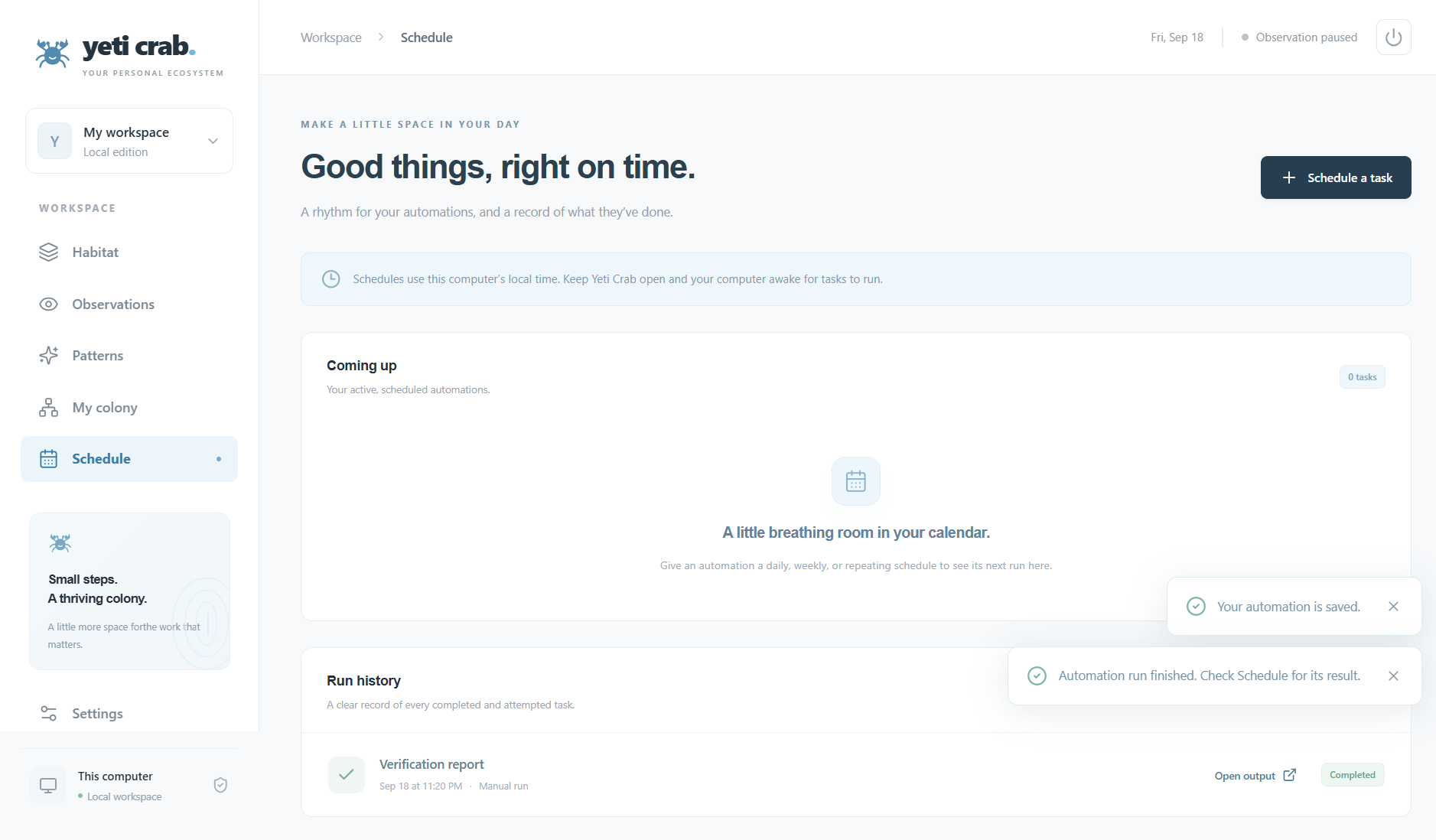
Closer look
Run history
Output link and status
Example
One routine, start to finish.
A hypothetical walkthrough. Your own patterns and choices will differ.
- Most mornings, you open the same team status page in your browser.
- With observation on, Yeti Crab notices the repeated visit. Once it has seen it on separate days, it may suggest a daily timing.
- You create a starter colony from the suggestion, set it to open that page’s HTTPS link and show a Windows notification each morning at 9:00, and approve it.
- On mornings when Yeti Crab is open and your PC is awake, it opens the page, shows the notification, and adds the run to run history. Reading the page is still up to you.
See where your data lives.
Observation settings, storage, retention, and the controls you have — explained plainly.